Which person's release belongs with this photograph?
A model release records the photographed person's consent to use of their image under agreed conditions. Being photographed and consenting to stock use are separate matters. Ordinary Adobe Stock submissions require releases for recognizable people, including people identifiable by distinctive features rather than only a face. Here, you will open one photograph, find the paperwork for each of the two people in it, and leave a record that lets you explain why those documents belong together. You are not identifying someone from their face or making a release valid merely by renaming a file.
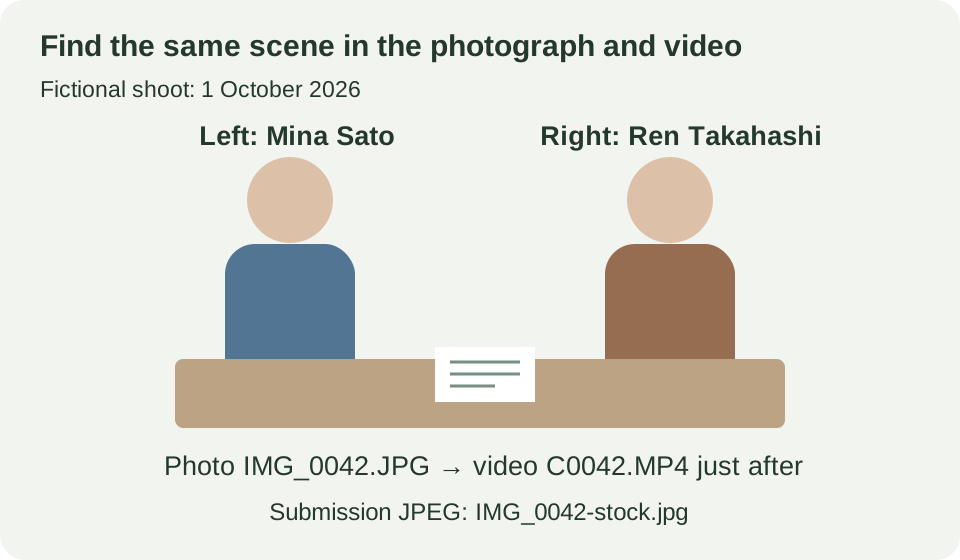
The fictional example continues the two adults from G03: Mina Sato (佐藤みな) on the left and Ren Takahashi (高橋れん) on the right, looking at papers at a desk on 1 October 2026. The submission copy is IMG_0042-stock.jpg; the original is IMG_0042.JPG. The same-scene video C0042.MP4 is a separate file. No real photograph, signed release or private contact details are supplied.
1. Open the photograph, the participation record and the paperwork
- Open your submission photograph in Preview. Look at everyone in the picture, not just the person whose name you remember.
- Open the record made for that shoot. In this fictional example, it contains a reference picture, Japanese and English name spellings, and the shoot date together. Clothing and position help you follow this day's record; they do not identify a person on another day by themselves.
- Open the folder containing the releases and retain each document's original filename. The examples are
Mina_Sato_20261001.jpgandRen_T_20261001.jpg. Write down which file you actually read before changing a name.
Original document filename means the filename of the release image—not the photograph's filename and not the name written on the form. Mina's practice document says “佐藤 みな”; Ren's says “高橋 れん.” Keep the person's name and the file's name separate.
Actual releases can contain signatures and contact information. Keep photographs, paperwork and working notes on your own device; you do not need to send them to this site. The supplied practice documents are unsigned fictional reading exercises, not Adobe release forms.
Open this diagram at full size · use Back to return.
2. Check one person at a time
Mina on the left: read the record and the document
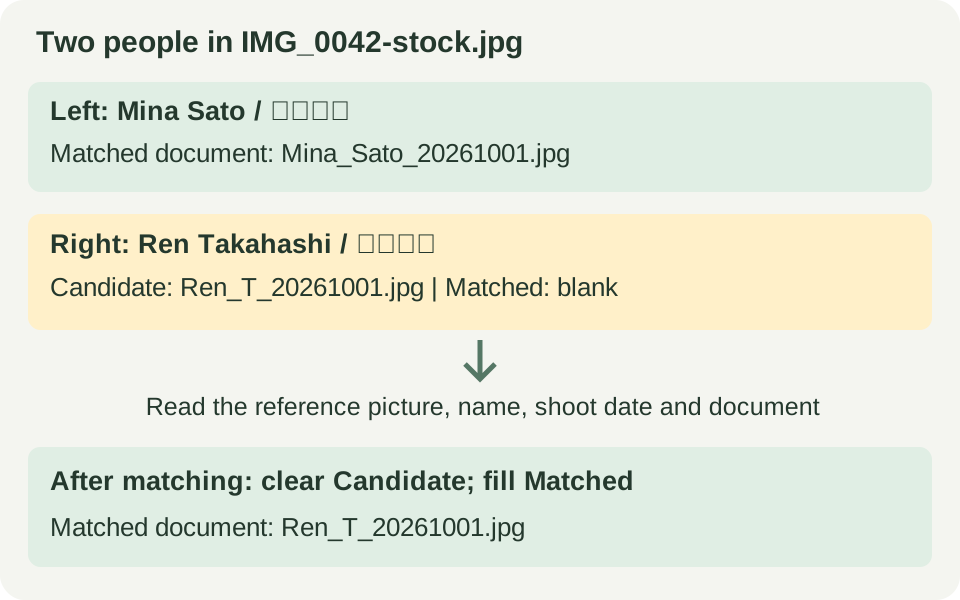
Find the person on the left in the participation record's reference picture. The same entry gives “Mina Sato / 佐藤みな” and the date. Open Mina_Sato_20261001.jpg in Preview, and read “佐藤 みな” and the date. In this fictional record, that establishes which person's document it is. Put its filename in Matched original document filename. Required release fields still need a separate check.
Ren on the right: put the abbreviated filename in the candidate column first
Ren_T_20261001.jpg is not enough by itself to establish that it belongs to Ren Takahashi. Open it and read “高橋 れん.” Until you connect that name with the person on the right, put the filename only in Candidate document — not yet matched. Leave the matched-document column empty.
Now read the participation record for the same shoot. Its right-hand reference gives “Ren Takahashi / 高橋れん” and 1 October 2026. Compare that with the document's name and date. In this invented example they match, so clear the candidate column and move Ren_T_20261001.jpg to the matched-document column. Record what you read to reach that conclusion.
If you have no reliable record connecting the person and the document, leave it as a candidate. If you need to ask the participant, identify the one photograph/document combination you need to confirm. Giving similar names a number is not a substitute for checking.
Open this diagram at full size · use Back to return.
Example row 1
- Stage checked
- When looking for documents
- Photo filename
- IMG_0042-stock.jpg
- Person in the photograph
- Left: Mina Sato (佐藤みな)
- Candidate document — not yet matched
- Not applicable
- Matched original document filename
- Mina_Sato_20261001.jpg
- Record used and next action
- Read the participation record's reference picture, name and shoot date and the document's 佐藤 みな. Required release fields need a separate check.
Example row 2
- Stage checked
- When looking for documents
- Photo filename
- IMG_0042-stock.jpg
- Person in the photograph
- Right: Ren Takahashi (高橋れん)
- Candidate document — not yet matched
- Ren_T_20261001.jpg (the document says 高橋 れん)
- Matched original document filename
- (blank)
- Record used and next action
- A similar name is not enough. Read the participation record's reference picture, name and shoot date.
Example row 3
- Stage checked
- After reading the participation record
- Photo filename
- IMG_0042-stock.jpg
- Person in the photograph
- Right: Ren Takahashi (高橋れん)
- Candidate document — not yet matched
- (blank)
- Matched original document filename
- Ren_T_20261001.jpg
- Record used and next action
- The same shoot's reference picture and both name spellings match. Clear the candidate column and move the filename to the matched column. Required release fields need a separate check.
The example has three rows to show a change over time: Mina, Ren before matching, and Ren after reading the participation record. This exercise uses three rows only so you can compare the change. In an actual working record, keep one row per person and update it. These rows do not mean submitting the photograph twice. If you later use C0042.MP4, play the whole clip and check whether anyone else appears.
Save a record for the two people in Numbers
- Choose File → Open in Numbers and open
releases-blank.en.tsv. It should have six columns and two empty rows. - Enter the photo filename and each person. Put unverified document names in the candidate column; leave the matched column empty. Double-click a cell to type, and press Tab to move to the next column.
- For this practice only, keep Ren's first stage and add a third row for the later stage. Select the last row's number, open its row menu and choose Add Row Below. In a real record, update Ren's existing row instead.
- After reading the photo, record and document, move the name to the matched column and describe the evidence. These practice documents have blank signature fields: write “Person matched in the fictional record; unsigned and not usable for submission.”
- Choose File → Save. Name your copy
release-practice.numbersand explicitly choose a local practice folder on your Mac. Close it, reopen it from that folder, and check that the candidate and matched columns stayed distinct.
If all the text appears in one column, adjust the import before editing: select the table, then Format sidebar → Table → Adjust Import Settings → Delimited; choose Tab as the separator and UTF-8 if the Japanese names are garbled. The practice entry gives the shared opening/saving steps. These TSV files are personal working notes, not Adobe's release forms or an upload CSV.
3. Once you know whose document it is, inspect the actual required fields
Adobe Stock requires an individual release for each recognizable person. Do not combine the two people on one release or join several releases into one edited image. For this example, open Mina's and Ren's documents separately.
- Read Adobe's model-release requirements for the form you use, names, dates, signatures, photographer and any witness requirement. Minor participants and signing through another person have additional conditions.
- Open each actual document in Preview and enlarge it enough to read the fields and see omissions.
- Write the specific missing field or next check in your notes. Do not edit names or signatures on signed paperwork merely to make a table consistent.
Matching names and establishing the necessary consent are separate tasks. This table does not automatically assess a signature or predict review acceptance.
4. Finish when you can explain the photograph and its two documents
After a real check you should be able to explain which document belongs to each person, what record established that, and whether the required fields are complete. If a person is still unconfirmed, leave a clear next action. With the supplied unsigned documents, this practice ends with both fictional people matched but both releases incomplete. It does not end with permission to submit.
Continue with the same photograph's pre-submission checks, or return to G03 or G04. The separate member shoot-planning guide is not included in this free practice package.
Translated from existing Japanese G15 and its practice instructions. Adobe requirements and English Numbers wording checked on 20 October 2026. Prior Japanese-interface operation evidence is retained; this draft does not claim a new English-interface or real signed-document acceptance.