Use the picture, paperwork and JPEG exercises with G01–G04
English practice materials for the four foundation articles. Read the examples or make your own local notes. The supplied people, records and unsigned documents are fictional; keep your own originals unchanged.
For reading or paper notes: open the prepared practice guide PDF. It includes the three companion explanations, practice steps and examples. You do not need to unpack a ZIP or use Numbers just to read them. The PDF is a reading and optional printing guide; its filenames and local-operation references are plain instructions, not download buttons. There is no need to use a print dialog to save this PDF.
For typing into tables, saving and reopening: unpack the practice ZIP and open this index.html in your browser. Its table links point to the actual TSV files. TSV means tab-separated values: plain text whose columns are separated by Tab characters. The tables are your own working notes, not an Adobe import CSV.
Choose the step you are working on
- G01 or G02: you have chosen your cup-and-notebook photograph.
- Read compare the saved JPEG with the finished original. Keep the original and export a separate file. No new table is required.
- G03: you need to know which release belongs to each person.
- Read match the two people and their documents, then use the release practice below. The supplied documents are unsigned; matching does not make them submission-ready.
- G01–G04: you have a finished photograph to check before submission.
- Read open one finished JPEG, then use the preflight practice. A picture without people does not need Mina's and Ren's fictional documents.
The separate member shoot-planning translation is not included in this free package. G01–G04's cup composition, invitation and location preparation can still be practised directly from those articles without downloading anything.
1. Check what is in the folder
Unpack the ZIP by opening it in Finder. Open index.html from the extracted folder. Before editing, duplicate the folder or copy a blank table into your own local practice folder, so you can start again.
index.html                     Start here
FieldNotes_Foundation_Practice_en.pdf
companions/                    English G11, G15 and G16 instructions
tables/                        Seven editable TSVs
documents/                     Fictional participation-reading documents
images/                        Four translated diagrams
SHA256.json                    File integrity list
The real files IMG_0042.JPG, C0042.MP4 and IMG_0042-stock.jpg are not included. Neither are real signatures, contact details or stock-ready release forms. No placeholder file pretends to be a real photograph. Use your own photograph optionally; do not send it to this site.
2. Read the participation record and the two practice documents
The fictional participation record connects the left-hand Mina and right-hand Ren with both their English and Japanese name spellings on 1 October 2026. Japanese names remain in the English materials because comparing their spelling is part of this example; a translation does not change a document's original name.
Example row 1
- Shoot date
- 2026-10-01
- Position in the photograph
- Left
- Participant name spellings
- Mina Sato (佐藤みな)
- Name on the document
- 佐藤 みな
- Original document filename
- Mina_Sato_20261001.jpg
- Reference for comparing people
- Left in two-person-scene.svg (fictional diagram)
Example row 2
- Shoot date
- 2026-10-01
- Position in the photograph
- Right
- Participant name spellings
- Ren Takahashi (高橋れん)
- Name on the document
- 高橋 れん
- Original document filename
- Ren_T_20261001.jpg
- Reference for comparing people
- Right in two-person-scene.svg (fictional diagram)
Blank participation record is available if you want to practise making a record. You do not have to fill it to do the matching exercise.
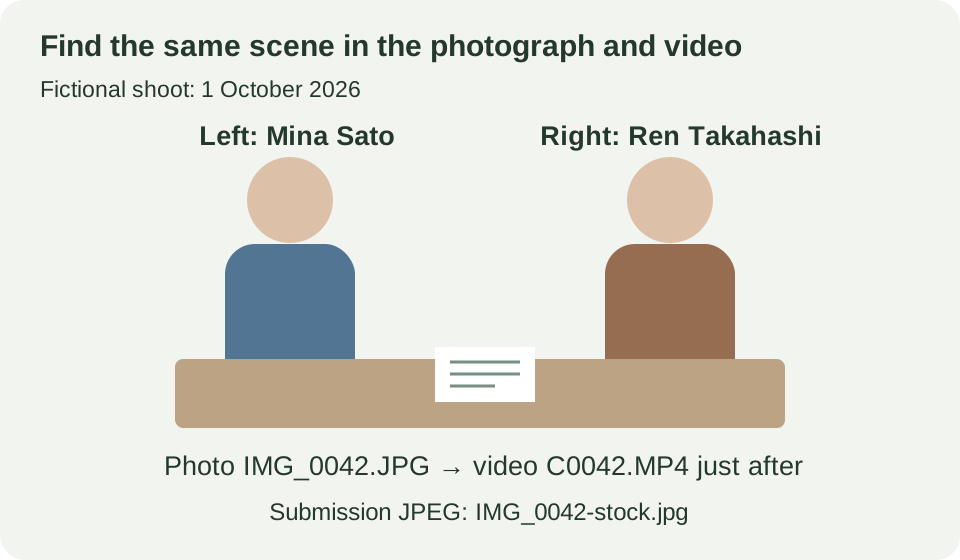
Open this diagram at full size · use Back to return.
Open Mina's practice document and Ren's practice document. The names written on them are “佐藤 みな” and “高橋 れん.” Both dates say 1 October 2026; both signature fields are blank. The abbreviated Ren filename needs the participation record to connect it to the person on the right.
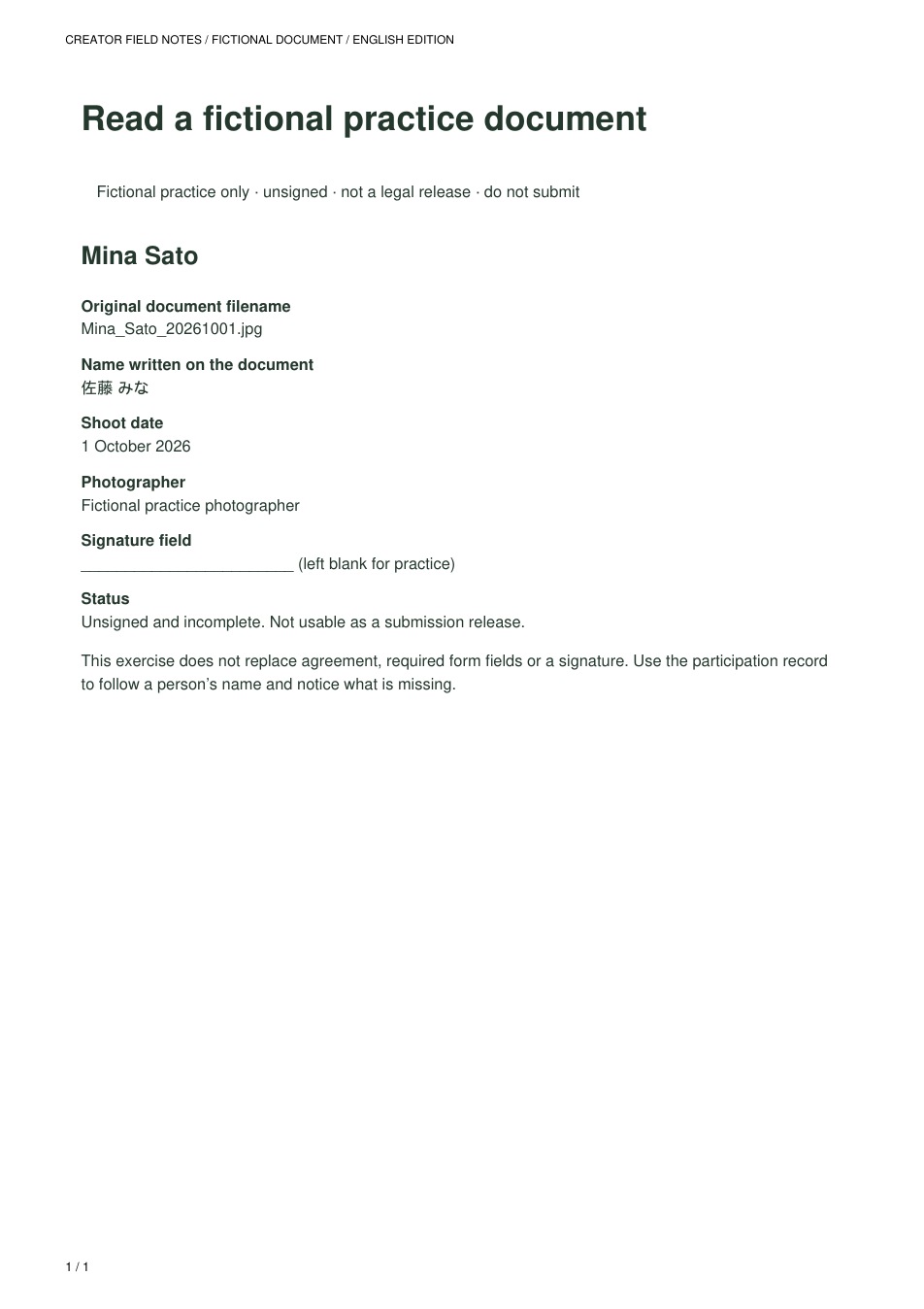
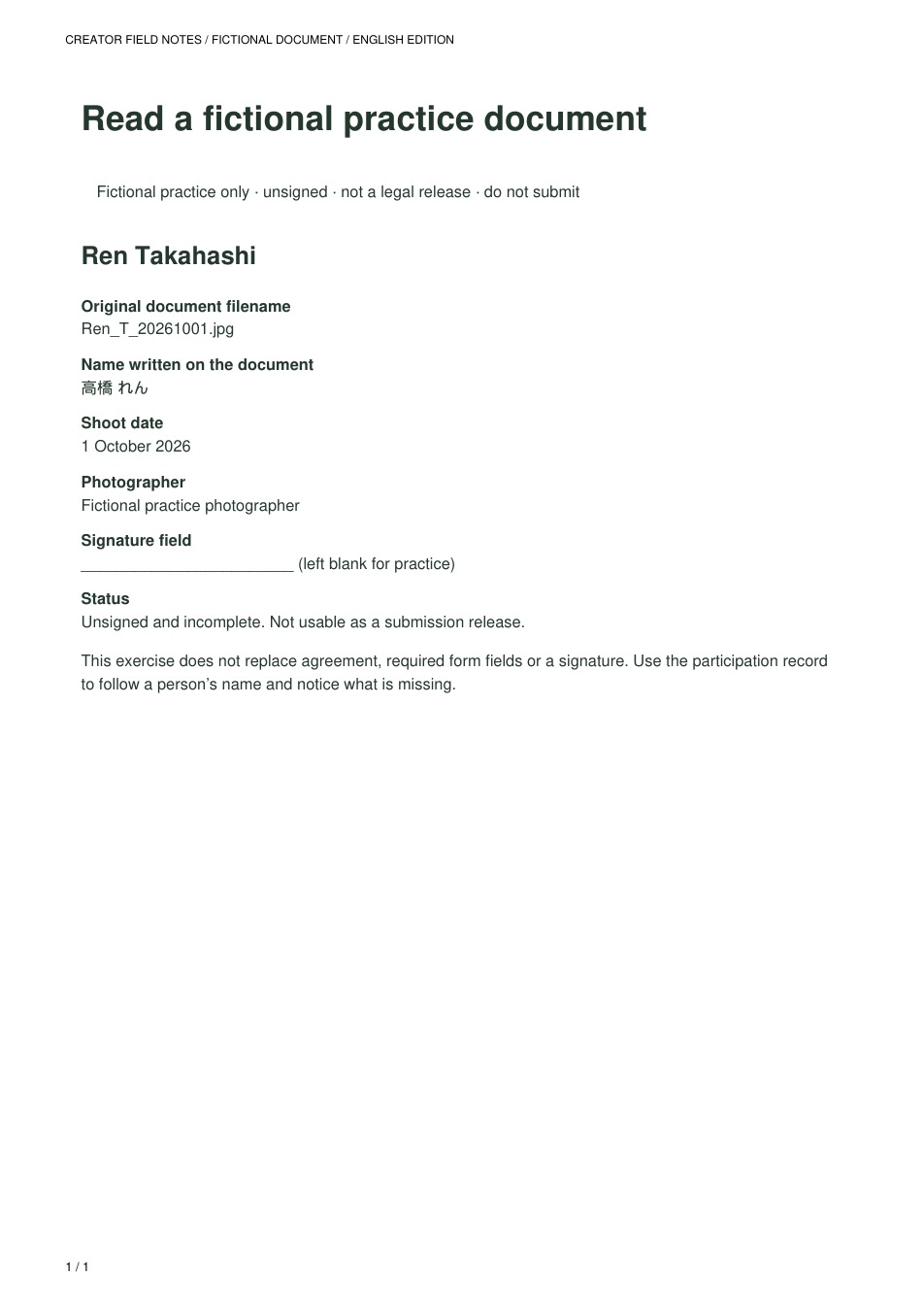
These are our own reading exercises, not Adobe's release template. You can also read the editable HTML examples and blank reading sheet. Do not add an invented signature or treat these as legally usable consent.
3. Open, save and reopen a local table in Numbers
- In Numbers choose File → Open and select a working copy of a TSV. Before typing, check that each heading has its own column. Release and participation tables have six columns; preflight tables have five.
- If all text appears in one column, select the table. In the Format sidebar choose Table → Adjust Import Settings → Delimited, and choose Tab as the separator. Use UTF-8 if the Japanese names are unreadable. Correct the import before editing.
- Double-click a cell to type and use Tab to move right. Retain blanks for things not yet established; a blank matched-document field has meaning.
- Choose File → Save. Type your own filename ending in
.numbersand explicitly select a folder on your Mac, such as your extracted practice folder. Check the Where location; do not accept iCloud Drive as the default if you intend local-only practice. - Close the spreadsheet, then reopen the saved
.numbersfile from that local folder. Check the text and empty fields you meant to retain. Saving a Numbers document does not rewrite the original TSV example.
English menu names follow Apple's Numbers for Mac guide. The prior source exercise was operated with Japanese menu labels; English-interface operation on this machine is not claimed. A mobile reader can read the PDF or make paper notes; these desktop Numbers instructions are not an iPhone workflow.
4. Match the person without calling an unsigned release complete
This exercise uses three rows only so you can compare the change. In an actual working record, keep one row per person and update it. Keep Mina's row, Ren's initial candidate row and Ren's later matched row for this exercise.
- Open
releases-blank.en.tsv. It has two blank rows. - For Mina, read the participation record and document, then enter the matched filename. For Ren's first stage, enter
Ren_T_20261001.jpgonly in the candidate column and leave the matched column empty. - Read Ren's entry in the participation record. Select the last row's number, open its row menu and choose Add Row Below to make the third practice row. Record the later stage there: clear the candidate field and put the filename in the matched field.
- In your next-action note, retain “Signature blank; person matched in the fictional record, but release incomplete.” Matching the person and completing consent paperwork are separate.
- Save as
release-practice.numberslocally, close and reopen. Explain why Ren's two stages have different filled/empty fields.
Example release notes show the two stages. Return to the matching explanation if the change is unclear.
5. Save what is still unconfirmed before submission
The fictional completed example assumes a real photograph and fully checked releases. It is not the result of inspecting these supplied unsigned documents. For this package's exercise, use the practice result with unconfirmed items.
- Open
preflight-blank.en.tsvand check its five headings. - Where a real JPEG is needed, write Not checked. Do not copy 24 MP or 12 MB as values you measured.
- For the two practice documents, write Incomplete because the signature fields are blank. You can record the fictional person/document matches separately.
- End with “Practice finished — do not submit; real photograph not checked; unsigned; not uploaded.” Save as
preflight-practice.numbersin your local folder, close and reopen it.
Example row 1
- What to check
- Submission file
- What you do
- Read the package's file list and explanation
- Values read or picture contents
- The real IMG_0042-stock.jpg photograph is not supplied
- Result
- Not checked
- Repair or next action
- If you optionally choose your own submission JPEG, replace the example filename.
Example row 2
- What to check
- JPEG, pixels, file size and color
- What you do
- Only if you have your own JPEG, read Finder and Preview
- Values read or picture contents
- The article's 6000 × 4000 / 12 MB / sRGB are fictional values. No real file measured in this package exercise.
- Result
- Not checked
- Repair or next action
- Do not copy the example as measured data. Write the values actually displayed for your own file.
Example row 3
- What to check
- Quality and picture contents
- What you do
- Only with a real photograph, enlarge faces, hands, desk and corners
- Values read or picture contents
- A diagram cannot establish real focus, blur or objects in a photograph
- Result
- Not checked
- Repair or next action
- If you use your own picture, inspect what actually appears in it.
Example row 4
- What to check
- Releases for two people
- What you do
- Read names, shoot dates and signature fields on the practice documents
- Values read or picture contents
- Mina_Sato_20261001.jpg / Ren_T_20261001.jpg. Both signature fields are blank.
- Result
- Incomplete
- Repair or next action
- The fictional person/document matches are understood, but these are unsigned documents. Do not submit them as releases.
Example row 5
- What to check
- Title and keyword draft
- What you do
- Compare the fictional diagram with the example wording
- Values read or picture contents
- Two people checking papers at a desk / two people, papers, desk, checking, indoors
- Result
- Fictional draft example
- Repair or next action
- If choosing your own photograph, replace these words with what it actually shows.
Example row 6
- What to check
- End of this exercise
- What you do
- Keep the unconfirmed and incomplete rows; save and reopen
- Values read or picture contents
- Document matching practised. Real photograph not checked; no signatures; not uploaded or submitted.
- Result
- Practice finished — do not submit
- Repair or next action
- Do not call actual submission preparation complete until real-image checks, agreement and required fields are finished.
Return to the actual-JPEG checks when using your own file. Inspect what is really in that photograph. A cup-and-notebook picture without people does not inherit the example's two-person release requirements.
6. Finish the exercise and keep a way to start again
You should be able to reopen your two saved notes, find the fictional documents again, explain why Ren moved from candidate to matched, and explain why an unsigned release and an uninspected photograph remain incomplete. Downloading the package alone does not finish that practice.
To start over, use another copy of a blank TSV. Keep examples unchanged, and keep your real originals if you optionally practise with your own exported JPEG. Actual photographs, consent, image quality and destination review still need their own checks.
Return to the article you were using
These are the existing live English articles; opening them needs an internet connection. Choose the article you came from to continue working.
- G01: your first photograph through to submission
- G02: after the cup-and-notebook exercise
- G03: finding the two people's releases
- G04: the first frame and the next step
Sources for the translated operations
Checked on 20 October 2026: Numbers text imports, adding a row, opening a spreadsheet, Preview information, and the Adobe sources linked in the three companions. Source Japanese practice instructions and their existing operation evidence are retained. The folder contains fictional data only.