When photographs and video come from different cameras, files from the same scene can be hard to find together. Open one photograph and one clip, compare them, and note their locations, the dates you can read and the shooting order you can establish.
Today's goal: find the two files from the same scene again
This workflow uses Finder, Preview, QuickTime Player and Numbers on a Mac. Read the photograph's capture time, compare it with the clip, and record both locations and the known shooting order in one table. Leave file order and recorded dates unchanged; the note lets you retrieve them.
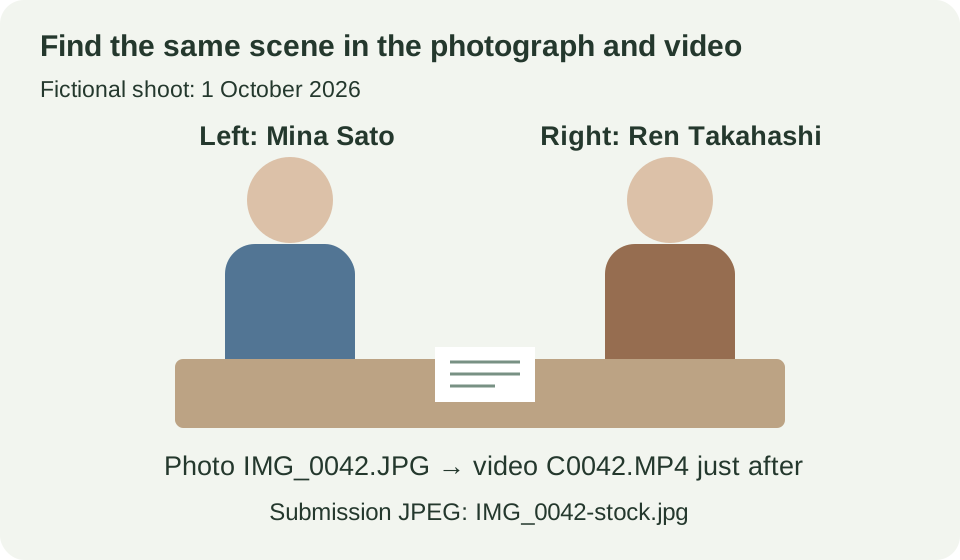
The fictional scene shows two people checking papers at a desk on 1 October 2026. The photograph is IMG_0042.JPG and the clip recorded immediately afterward is C0042.MP4. Mina Sato (佐藤みな) is on the left; Ren Takahashi (高橋れん) is on the right. The people, names and shoot records are invented. Choose one photograph and clip of your own to follow the steps.
1. Choose two files showing the same scene
- Open the shoot folder in Finder. Open one recognizable photograph in Preview and examine clothing, objects and people's positions. Right-clicking the photograph and choosing Open With → Preview is one way to open it.
- Open a clip that may be from the same scene in QuickTime Player. Play it and compare the two people and desk. Do not rely only on similar filename numbers.
- Note both file locations. In the example, a
Shoot practicefolder containsOriginalswith both files. The exported finished JPEG goes in a separateSubmissionfolder.
Shoot practice/
  Originals/IMG_0042.JPG
  Originals/C0042.MP4
  Submission/IMG_0042-stock.jpg  ← separately edited and exported JPEG
Shoot practice/Originals/IMG_0042.JPG describes opening Shoot practice, then Originals, then the photograph. You can begin by recording those folder and file names. If another card has a photograph with the same name, include the card-specific folder too.
A submission JPEG is a separately saved version made by editing the original. Photo software often calls this export. Keep originals unchanged and use a copy when editing. A copied file's creation or modification date differing from its capture time does not by itself mean the capture record was damaged.
2. Read the capture time and investigate a difference
Find the photograph's original capture time in Preview
- With the photograph open, choose Tools → Show Inspector in Preview, or Command-I.
- Open Exif in the information area and read Date Time Original. Exif is shooting information stored in the image by the camera. Our example reads
2026/10/01 9:00:10. - Copy the value into “Date/time or information read” and note the field in “Where I looked.” If Exif or the date field is unavailable, write “not displayed”; do not substitute Finder's modification date.
This value alone may not distinguish 9 a.m. in Japan from 9 a.m. elsewhere. Read a note of the camera settings at the time if one exists. The camera's current settings do not prove its settings during a past shoot.
Keep the known order even if the clip's time is unknown
QuickTime Player's Window → Show Movie Inspector displays information such as video dimensions and duration. It does not necessarily display a capture time equivalent to a photograph's Exif. If a time cannot be read, use playback and shoot notes, leaving the unknown value unknown.
The fictional note says “Camera A: Japan time. Camera B: UTC. Video immediately after photograph.” UTC is a shared time reference; Japan time is nine hours ahead. For example, 00:00 UTC is 09:00 in Japan. A nine-hour difference can suggest a setting difference, but the clip's recorded time has not been read from its screen here. Record only “immediately after the photograph,” without inventing an exact second.
A difference of minutes may mean the two cameras' clocks were not synchronized. Check nearby photographs, clips and notes. If the reason remains unclear, write “date/time unverified.” You do not need to change original file dates merely to make a list sort consistently.
3. Save what you established in a table
The example records the photograph's readable time and only “same scene, immediately after the photograph” for the clip. Use the blank table for your own work. A TSV is a table whose columns are separated by tab characters.
Example row 1
- Original file location
- Shoot practice/Originals/IMG_0042.JPG
- Date/time or information read
- 2026-10-01 09:00:10
- Where I looked
- Preview → Inspector → Exif → Date Time Original
- What I established / remaining question
- Shoot note: Camera A used Japan time. No timezone shown in photograph.
- Known date/time or shooting order
- Japan time 2026-10-01 09:00:10
- Submission copy location
- Shoot practice/Submission/IMG_0042-stock.jpg
Example row 2
- Original file location
- Shoot practice/Originals/C0042.MP4
- Date/time or information read
- Date/time not readable on screen; two people at desk
- Where I looked
- QuickTime playback. Shoot note: Camera B used UTC; video immediately after photo.
- What I established / remaining question
- UTC is a shared time reference, nine hours behind Japan time. Recorded time in this file remains unverified.
- Known date/time or shooting order
- Immediately after IMG_0042.JPG; same scene. Exact second unconfirmed.
- Submission copy location
- Not created (not submitted in this exercise)
Download the English example TSVDownload the blank English TSV
These two tables are also included in the English G14–G16 practice package linked above. The separate foundation practice PDF and ZIP cover color, releases and pre-submission checks; they do not include the G14 exercise.
Open it in Numbers and save your own working table
- Choose Download the blank English TSV in this article. In Numbers, choose File → Open and select
assets-blank.en.tsv. Openassets-example.en.tsvfirst if you want to inspect the example. - Check for six columns, starting with “Original file location” and “Date/time or information read.” If everything appears in one column, select the table and check the delimiter under the Format sidebar's Table → Adjust Import Settings.
- If long text is cut off, select a table cell. If editing text, press Esc before Command-A to select all cells. In Format → Text, enable Wrap text in cell. Scroll horizontally to read the rightmost column.
- Enter the photograph row first. Double-click a cell to type; use Tab to move to the next column. Fill the video row too, recording both an unreadable time and the order you could establish.
- Choose File → Save, explicitly selecting your local working folder, with a name such as
shoot-practice-file-note.numbers. After opening a TSV, you can retain your work as a Numbers document. - Close and reopen that saved Numbers file. Check the text, filenames and both rows. Keep the original downloaded TSV so you can start again.
This is your retrieval note, not a CSV to import into Adobe Stock or another submission service.
4. Finish when you can reopen both originals
Follow the locations in your table and reopen the photograph and clip. If you can explain “same two people,” “video immediately after the photograph” and “exact video time unverified,” you have a record for finding these two files again. You do not need to put the organizing work on hold until every timestamp is certain.
When the photograph is finished, add the submission JPEG's location. IMG_0042-stock.jpg is separate from IMG_0042.JPG. Continue to matching both people's releases to the photograph, or revisit saving a finished photograph so you can find it again.
The Japanese source's Preview and Numbers operations were checked on a Mac with non-private teaching files on 19 October 2026. The diagrams and shoot record are fictional. A new English-interface session, Windows workflow and physical-phone app operation have not been verified here.