A video can play silently while still containing audio. Separate turning down the player's volume from removing audio from a submission file, then inspect the saved copy.
1. Read the destination's conditions and keep the original
The official Adobe Stock editing guidance checked on 19 October 2026 says ordinary video submissions must not contain embedded audio, including dialogue, ambient sound or music. Do not extend that condition to other agencies or individual Missions. Read a Mission's brief first and do not apply this edit when editing is prohibited.
The fictional desk-01.mov is a stationary cup-and-notebook shot, with 15 seconds of video and room noise. This is not the author's actual work or a measured camera result. Try with one short clip of your own.
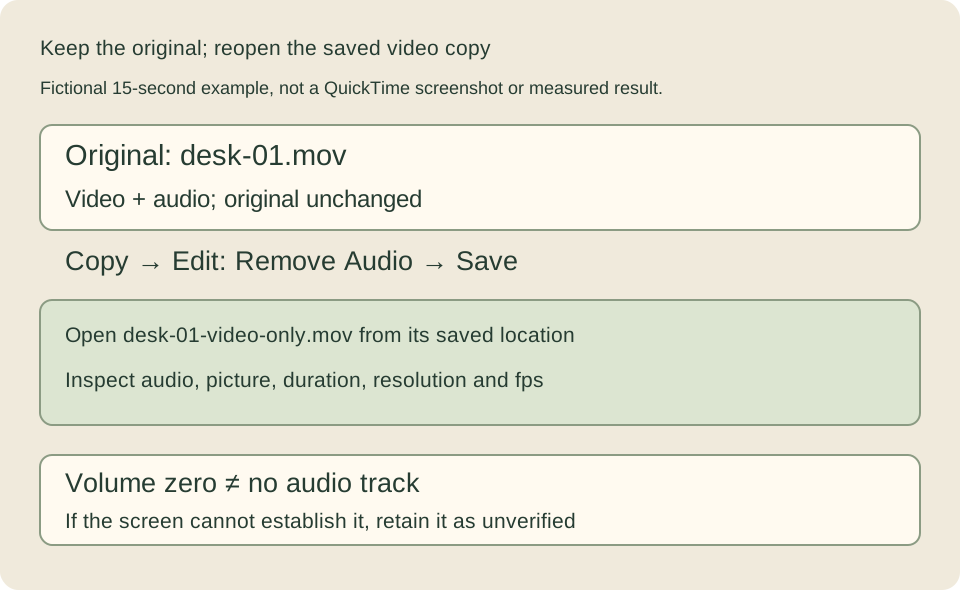
Copy the original in Finder into a separate Audio removal check folder. Rename it desk-01-video-only.mov before editing. Retain desk-01.mov unchanged: the audio-free copy cannot restore sound that you later need for another use. Renaming an extension alone does not convert a format.
2. Inspect the information while audio is still present
This example uses QuickTime Player on a Mac. Open the original and choose Window → Show Movie Inspector, or Command-I. The inspector displays information such as format and dimensions.
Read duration, resolution, frame rate and whatever audio information is shown. Resolution is the frame's pixel dimensions; frame rate, in fps, is the number of frames per second. H.264 is an example of video compression; AAC is an audio-compression example. Note your own file's values so that you can spot unexpected changes later. Do not copy the example's 15 seconds as your own duration.
Apple's Movie Inspector instructions describe video and audio format information. Fields depend on operating system and file format. Leave unreadable values unknown rather than guessing them.
3. Choose Remove Audio on the working copy
Close the original's window. Open Audio removal check in Finder, open desk-01-video-only.mov in QuickTime Player, and read its title to confirm you are editing the copy.
- Choose Edit → Remove Audio. Read the name carefully: Remove Video is the different operation that leaves audio without video.
- Choose File → Save. If asked for a name or location, keep the working-copy destination and name; do not return to the original.
- Close it after saving, then reopen
desk-01-video-only.movfrom Finder. Inspect the saved file rather than an editing window.
Apple's removal instructions describe the result of Remove Audio as video only. Lowering a volume slider is not a substitute.
4. Inspect both saved-file information and the picture
Show Movie Inspector again on the reopened copy. Look for any remaining audio-format entry or audio field that appeared on the original. If it still reports audio, preparation is unfinished. Confirm the copy's name and whether removal and saving actually happened.
An audio track is the part of the file that stores audio. A silent track is different from no track. If the available view cannot establish whether a track remains, do not finish merely because playback is silent. Record “saved audio track not yet verified.” Reading available information and reaching a conclusion are separate stages.
Play the copy from beginning to end. Confirm the cup and notebook remain, neither end is missing and the necessary duration remains. Compare the noted resolution and fps too, to check that removing audio did not inadvertently shrink the image or change its speed.
No audio does not establish acceptable footage, rights or review approval. Read the ordinary video technical requirements separately. Return to the usable-video guide for camera movement and trimming.
If the operation is unavailable, or you need the original sound
If QuickTime cannot open the clip or the command is unavailable, investigate your usual editor's format support rather than repeatedly renaming it. The file may already lack audio; an unavailable command alone does not establish the cause.
When exporting from an editor, enable video and disable audio output in the export settings. Muting a timeline is not necessarily the same as disabling exported audio. Find the command in that software's official instructions, then open the saved file and inspect its information and picture in the same way.
Re-encoding can change picture quality even with the same resolution and fps. Do not assume QuickTime saving leaves video unchanged for every format either. If the result is wrong, make a fresh copy from the retained original rather than repeatedly repairing the processed file.
If you need the sound later, return to desk-01.mov. It is not restored from the submission copy. Save original and submission versions separately. Once audio information and footage are checked, continue with description and submission.