You want to remove GPS coordinates from a submission JPEG while keeping the keywords you entered. Before changing an original, separate what to exclude from what to retain in one exported copy.
1. See whether the original contains location information
These steps are for photographs managed in Lightroom Classic. The fictional IMG_0101.JPG shows a red cup and blank notebook pages. It contains GPS, the keywords “cup, notebook, desk” and the photographer's copyright information. No real location or private information is supplied.
GPS information describes a location through latitude, longitude and related values. It can be stored as information attached to the file, separately from the scenery visible in the picture. Attached information is called metadata; looking at the picture alone does not establish whether it is present.
Select just the photograph in Library and open Metadata on the right. Use the metadata-set menu at the top to choose EXIF and IPTC or Location, then inspect the GPS field. Adobe's metadata explanation describes the available views.
You do not need to transcribe coordinates; “original: GPS present” is enough. Read its keyword and copyright fields too, so you know what to retain. If GPS is already empty, record “original: no GPS.” You can practise export with that file, but cannot establish that GPS was removed from a file that originally contained it.
2. Exclude GPS when exporting a copy
Exclude GPS from the output JPEG rather than clearing the original's GPS field. Retain the original and its editing history and export one picture to a private local folder called Location check. This export can also change format and color; it is not a process that edits only GPS while guaranteeing identical image data.
- Select the picture and choose File → Export. Set the destination to Location check and the filename to
desk-cup-no-gps.jpg, distinct from the original. - Choose JPEG and your intended submission settings for dimensions, quality and color. If color is unclear, first try the sRGB comparison export.
- Under Metadata, choose what to include. This example uses All, which retains keywords, but may also include contact details or an address. Read the original fields first. Copyright Only would exclude the keywords we want to keep.
- Enable Remove Location Info in the same section and export. It excludes GPS metadata; it does not change a sign visible in the picture or text in a description.
Adobe's export instructions distinguish including All metadata from excluding GPS. Choosing All is not a decision that every field is suitable for sharing. If another field contains information you do not want to release, do not send this checking JPEG; decide how to handle that field first.
Do not overwrite your usual export preset before testing one file. This is an ordinary stock-submission-copy example; it does not authorize editing for a Mission that prohibits it.
3. Inspect the exported JPEG, not the original
Open Location check in Finder or File Explorer and confirm desk-cup-no-gps.jpg exists. Looking at GPS while the original remains selected does not inspect the output.
Back in Lightroom Classic's Library, choose Import, select the output folder and Add this JPEG. Add registers the file without moving its location. Do not apply a metadata preset, keywords or Develop preset during import: newly applied information would obscure what the JPEG already contained. No synchronization to the original is required.
Select only the imported JPEG and read its filename and folder in Metadata. Confirm it is desk-cup-no-gps.jpg, not IMG_0101.JPG, before inspecting GPS, copyright and keywords. Keywords are also visible in Library's Keywording panel.
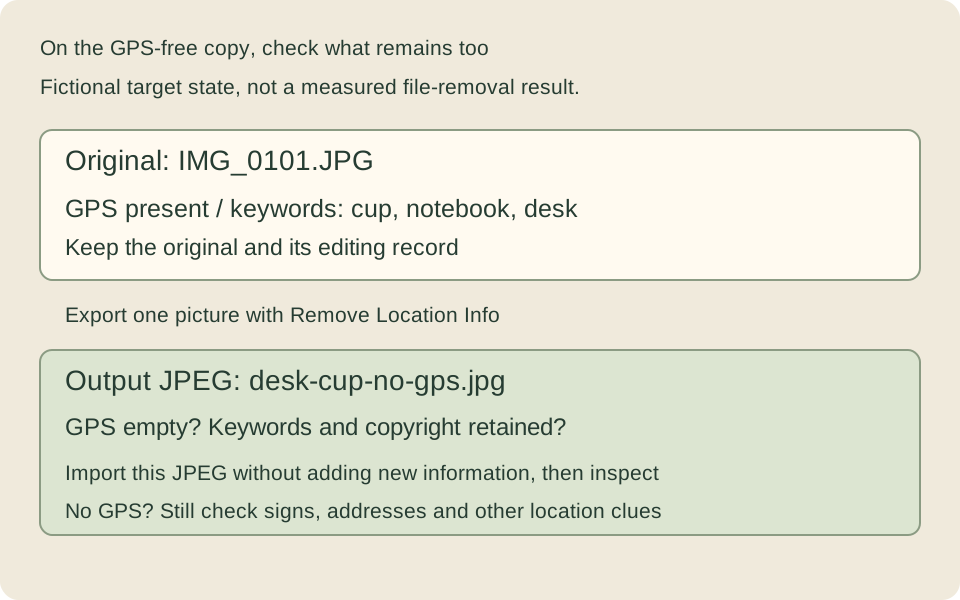
The intended result is GPS in the original, empty GPS in the output, and the required keywords/copyright still present. If your application cannot display a field, record it as unverified rather than concluding it disappeared.
4. If GPS remains or keywords disappear
GPS remains. Check the filename first: are you viewing the original or an earlier export? Then check Remove Location Info and export one new file from the original as desk-cup-no-gps-v2.jpg.
A keyword is missing. Check that it exists in the original and that Metadata is not set to Copyright Only. In Keyword List, right-click the keyword—Control-click also works on Mac—and open Edit Keyword Tag. If Include On Export is disabled, that keyword is excluded.
This keyword setting is not specific to one photograph; it can affect other photographs using the same tag. Find out whether it was deliberately excluded and understand the effect before changing it. See Adobe's keyword instructions. Re-export from the retained original and catalog rather than trying to reconstruct missing information solely from the GPS-free copy.
Also check the picture and any written location
Removing GPS leaves an address in a title, a place in a filename, signs and views through windows unchanged. If a location needs to be concealed, inspect each separately. Empty GPS also does not establish location permission or a photographed person's consent.
Re-exporting a JPEG from Lightroom Classic can change its pixels. Open the actual output and check orientation, dimensions, color and repairs. Once necessary information remains and unwanted information is absent, return to ordinary photograph submission preparation. Keep the checking copy and original as files with separate roles.