Photographs are building up on your computer, but none are reaching submission. Start by opening one usable picture from one shoot. With a cup and notebook on a desk, work through choosing, lightly finishing, describing, and sending that picture for review.
1. Open one usable picture from three similar photographs
Our fictional files are IMG_0101.JPG, IMG_0102.JPG, and IMG_0103.JPG, showing a plain cup and a blank notebook. These are examples, not actual comparison photographs or the author’s review results. The desk-scene exercise explains making a horizontal frame, leaving room for text, and trying a vertical frame.
On a Mac, select a picture in Finder and press the Space bar to open Quick Look. Compare the whole pictures one at a time. Start with obvious problems, such as an unintentionally cut-off cup handle or private writing visible on the paper. Leave those pictures out of the selection you will finish now; you do not need to delete the originals.
Next, open a candidate in Preview or your usual image viewer and enlarge it. Look at the cup rim and notebook edge for missed focus and movement blur. For similar compositions, start with one that shows the shapes and detail clearly—here, IMG_0101.JPG. If the vertical picture has a different useful purpose, keep it as a later candidate. You do not need to finish every tiny variation from a burst.
I first set aside photographs with clear problems: missed focus, unintentionally closed eyes, severe camera shake, or logos that are difficult to remove. I think it matters to add material with different uses, including ordinary gardens, parks, mountains, and hobbies. Selecting only one image from 100 and spending an extreme amount of time on it is not my standard for every shoot.
If all three are blurred, you can photograph the scene again instead of forcing an edit. Good image quality does not resolve uncertain permission for a person or location; keep those pictures separate from the ones ready to submit now.
2. If the picture is a little dark, start with brightness
Retouching means adjusting a photograph after capture, for example its brightness or color. Keep the original separately and start with a working copy. If the cup already looks naturally lit, continue to export rather than making a change for its own sake.
My finishing consists of light retouching, mainly exposure, color, and contrast. I generally do not retouch skin. I prefer to arrange light, backgrounds, and clothing during the shoot so there is less to fix afterward.
The following example is for someone who already uses Photos on a Mac. You do not need to switch from another editor. The operation names can be checked in Apple’s adjustment instructions.
- If the working copy of
IMG_0101.JPGis not in Photos, choose File → Import, select it, choose Review for Import, then import that selected picture. You do not need to enable iCloud or sharing for this exercise. - Double-click the cup photograph, choose Edit → Adjust, and open Options under Light. Use Exposure, which adjusts the lightness or darkness of the whole image.
- Move it a little brighter while looking at the cup rim and white notebook. If those white areas lose their visible boundary, reduce the change. Stop where the shapes in your own picture remain clear rather than applying the same value to every photograph.
- Turn the checkmark beside Light off and on to compare the change. To reset a changed slider, double-click it. Turn the adjustment back on if you want to keep it, then choose Done.
I sometimes use AI to remove logos. If that is difficult, I crop; if it still does not work, I do not keep the picture as a submission candidate. Correcting part of a photograph and generating the main subject are different cases. Know what processing you used and check the destination’s acceptance and labeling requirements.
This exercise makes a light adjustment for an ordinary stock photograph. Brightness adjustment cannot recover detail lost to camera shake. Do not apply these editing steps to an individual Mission that prohibits editing. We are not removing logos or making generative-AI changes here. If you need those processes later, read the destination’s current rules and enlarge the edited area and its surroundings to check the result.
3. Open the saved JPEG you intend to submit
In Photos, select the picture and choose File → Export → Export 1 Photo. Expand the options beside Photo Kind, then choose JPEG, the sRGB color profile, and Full Size; start with a high JPEG quality setting. Export Unmodified Original is a different operation and does not make a JPEG containing the adjustments you just made. Compare the available options with Apple’s export instructions.
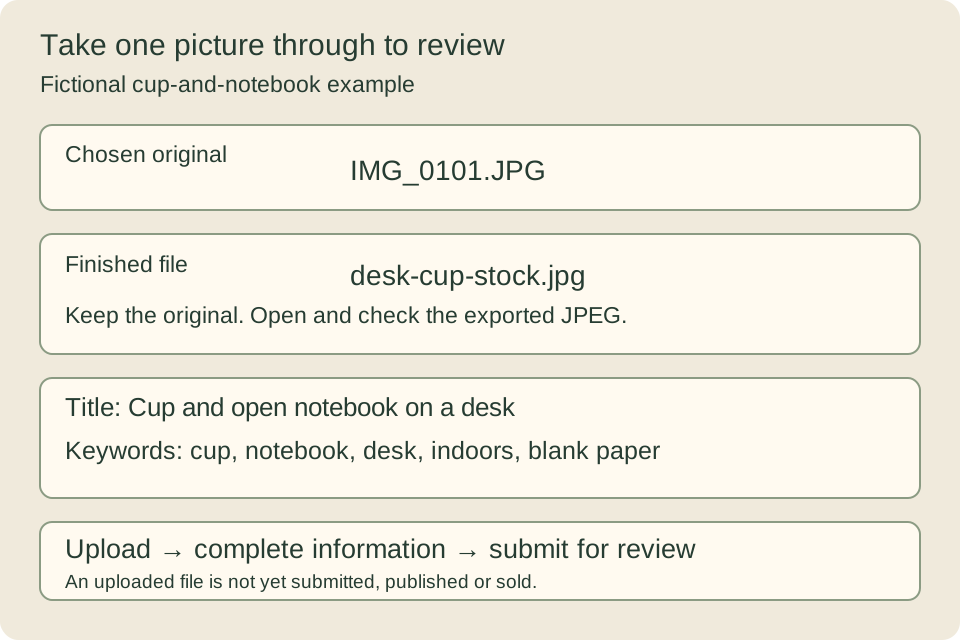
Save to Finished in this shoot’s folder. Use a name such as desk-cup-stock.jpg to distinguish it from the original. After exporting, leave the editing view, find the saved JPEG in Finder, and open it in Preview. Check its orientation, the cup rim, and the boundary of the white paper again.
Ordinary Adobe Stock photographs must meet requirements including JPEG, sRGB, 4–100 MP, and a file size no larger than 45 MB. A setting named Full Size or High Quality does not by itself prove that the saved file meets them. MP expresses pixel count in millions. Use the English pre-submission explanation to see where to check the JPEG’s size and color. If the color changed on export, use the English JPEG color explanation.
4. Give the photograph a short, accurate description
A title briefly tells someone what the photograph shows. Keywords help buyers find it. Put the main subject and scene before the camera model. For this picture, you can start with the following example.
Words for this picture
Title: Cup and open notebook on a desk
Keywords: cup, notebook, desk, indoors, blank paper
If no coffee is visible, do not add “coffee.” Do not add “office worker” when nobody appears in the picture. A concept such as “break” should fit what the picture communicates. If you do not know the location, do not guess a plausible city.
For Adobe Stock, match the title and keyword language to the language set in your Contributor Account, and put important keywords first. The original Japanese article gives a Japanese-language example; the one above is adapted for an English-language submission. Check Adobe’s title and keyword guidance for the language and current entry requirements. Do not add unrelated popular words or repeated terms to fill a quota.
I often use AI tagging, and sometimes I do not examine it closely. I do not manually scrutinize every tag on every file. Using AI helps me avoid leaving photographs stuck at the information-entry stage.
You can compare automatic suggestions with the picture, but AI may not know the actual location or people’s attributes. A suggestion such as “Tokyo,” “real family,” or “doctor” does not make that an established fact. If you copy a description from another photograph, check that it does not still name the earlier picture’s objects or actions.
I sometimes use tags for a relationship or occupation conveyed by a staged scene, even when they are not the participants’ real relationship or occupation. It matters to distinguish the concept a commercial scene conveys from a claim about the actual people.
Keep concepts portrayed by models separate from factual descriptions for editorial use. Our cup picture does not require you to decide anyone’s job or family relationship. Begin with the objects and scene you can actually see.
5. Continue past upload and check that it was sent for review
This section uses ordinary Adobe Stock photograph submission as its main example. Follow Adobe’s official submission instructions in your own eligible Contributor Account. It is separate from your Notes login. Read the steps independently of the author’s account history and of the conditions at other destinations.
- Use Upload in the Contributor Portal and select
desk-cup-stock.jpgfromFinished. Check the filename so you do not accidentally send the originalIMG_0101.JPG. - Select the uploaded photograph and enter the appropriate category, title, and keywords. Attach any required model or property releases that actually belong with this photograph. A desk picture with no people is different from a people photograph.
- Read any missing-field or warning messages, complete what is needed, and submit the photograph for review. Seeing the file appear in the upload area is not the end of the process.
- After submission, look for the picture in the review queue or a status that indicates it is awaiting review. Add one line to the storage note recording when you submitted which file to which destination.
If the connection stops or you do not see a completion message, look for the filename and picture in the uploaded and review queues before sending it again. If you cannot find it and do not know whether it was received, leave that result unconfirmed while you investigate. Even if you intend to send many files, start with a number you can follow this way. Video and large files take longer to transfer; allow time to confirm submission and check an interrupted transfer.
If a batch stops, use a small group you can follow and note the combined file size, start and end times, and which files were received. Judge the time it actually takes on your normal connection rather than an advertised maximum speed. Check the current destination's instructions and file list for what resumes after an interruption and how duplicates are handled. This can help you avoid repeatedly sending the same files. An upload progress display alone is not a reason to delete the originals.
My basic approach is to submit to several sites from the outset, with Adobe and iStock as main destinations while also using others. Exclusivity can depend on the contract and type of material, so this does not mean that every file can go everywhere. Check your own account and contract conditions first.
The following account history was recorded as of 9 October 2026. It is not a statement that the account has since been restored.
The record dated 9 October 2026 describes the suspension of my Adobe Stock account and my appeal. The submission approach in this guide predates that record. The record alone does not establish what happened afterward, or the account's current suspension, recovery or ability to submit. Before submitting, check your own account display and the provider's notices. The handling at that time is recorded separately.
Once one picture is awaiting review, move to the next
Awaiting review is different from publication or a sale. If the photograph is accepted into your portfolio, confirm its publication separately from any royalty earned when a customer licenses it. Submitting one photograph does not mean it has produced revenue.
I focus more on growing the portfolio than on pursuing every individual rejection. I finish usable material and move on, improving subjects and quality gradually. Analyzing and resubmitting each rejected file is not a required stage in my process.
Only when a correction and resubmission are needed, keep the earlier submission date, the reason stated in the notice, what you changed, and the new submission date together. Distinguish the notice's reason from what you think caused it. Keeping the old record instead of replacing it with a new date lets you retrace what was changed and sent again. If a problem repeats, changing one condition at a time can make the result more useful for the next shoot.
If the same problem keeps recurring, submission becomes impossible, or an important rights or account notice arrives, read what the notice actually says. “Image quality” alone does not establish whether the cause was shake or compression; open the original and submitted JPEG. If you can fix it, make another version and retain the earlier history. A description cannot fix severe blur or missing consent.
Once you have sent one picture for review, keep its finished JPEG and submission note at a separate storage location too, then finish the next composition. Build familiarity with opening a picture, fixing what it needs, and confirming submission, rather than making an analysis table for every file your goal.