You have taken several pictures of the same objects, but they all look alike. Make one clear starting photograph, then change the space for text and the orientation of the frame. Compare the results and keep photographs whose different uses you can explain.
1. Take a basic horizontal photograph of a cup and notebook
Put a plain cup and a blank notebook on a desk near a window. Keep branding, other people’s artwork, and readable private documents out of the frame. If direct sunlight is too harsh, move the objects farther from the window or try light through a sheer curtain you already have. An empty cup is fine for the first attempt and avoids spills.
Sections 1–4 are about placement, light, and what you include in the frame. Start in Auto or P, short for Program Auto, which lets the camera choose exposure settings. Use window light without flash; look up how to turn off flash in your own camera’s manual. Section 5 is a separate exercise in changing settings yourself.
Choose one intention: the cup is the main subject, and the notebook helps suggest time spent at a desk. Take a horizontal picture from a position that includes both objects in full. This is your starting image. Composition means deciding what appears in the frame, where it sits, and how much of the scene you include.
If the photograph is dark or blurred, or the handle is hidden, fix this first image before making variations. Start with a clear cup shape and focus where you intended, so you do not multiply the same problem. This is a fictional exercise; the diagram is not an actual photograph.
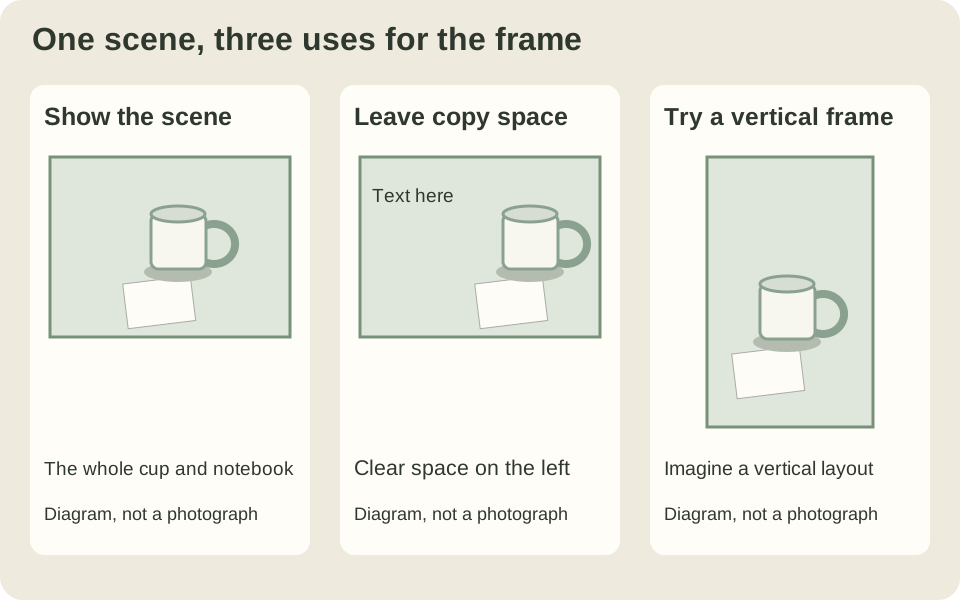
2. Make space on the left for a headline
- Change your camera position so the cup and notebook sit toward the right of the frame. Leave a clear area of desk on the left, without objects or strong shadows.
- Imagine a short headline in that area. If notebook lines or the cup handle would sit behind the words, adjust the objects or the camera’s direction.
- Check that the rim and handle of the cup and the corner of the notebook are not accidentally cut off. Take another photograph.
The clear area is often called copy space: room for a buyer to add text or adapt the image to a layout. Empty space is useful when it works for that purpose. If the cup becomes too small, move a little closer or include less of the scene.
You can make space on the other side when a layout needs it. Mirroring the finished photograph is not always equivalent: it changes the direction of writing, shapes, and light. Shooting the version deliberately makes those choices easier to judge.
3. Turn the camera vertically and reconsider the frame
Hold the camera vertically. Instead of planning only to crop the sides of a horizontal picture later, look again at the notebook edge, cup, and far end of the desk. If a headline will sit at the top, make sure that part of the frame is clear before taking the picture.
A closer picture of the handle or paper texture is another possibility. If you move so close that the whole cup is no longer clear, the purpose changes from explaining its shape to showing material or texture. Give the picture a distinct role rather than making a tiny change between near-identical shots.
A wider frame leaves some room to crop, but a heavy crop reduces the pixel count. Cropping cannot restore a handle you left outside the frame or detail you never recorded. Include the parts you will need while shooting.
4. Compare distance, camera height, and the background
Try lowering the camera to look across the cup, then raising it to show more of the notebook. If something behind the desk overlaps the cup, take a step to either side and compare before moving the cup itself.
Moving closer tends to exaggerate the difference in apparent size between near and distant objects. Zooming from the same position changes how much fits in the frame; it is not the same as moving closer. Choose where you can stand, then choose a focal length that includes what you need. Focal length is the value marked on a lens, such as 35 mm or 50 mm, and helps determine the angle of view.
A prime lens has one fixed focal length. I like using prime lenses and moving myself to work out a composition. Moving position and changing focal length from the same position are different actions: position changes the perspective between objects, while focal length also affects the area included in the frame.
If a wall or window limits your movement, choose a composition that works within the space you have. The equipment guide covers lens choices. Buying another lens is not a requirement for finishing this exercise.
5. Try one setting at a time in M with fixed ISO
After the composition exercise, leave the cup and notebook in place and compare the effects of settings. Use M, or Manual, where you choose aperture and shutter speed, and turn Auto ISO off. Auto mode may not let you change those values independently.
In your camera’s manual, find how to select P and M, disable Auto ISO, and display the aperture, shutter speed, and ISO of a photograph during playback. If your equipment does not offer M or fixed ISO, skip this exercise and continue with placement and light. Nikon’s Z 7II/Z 6II manual is one example: P sets aperture and shutter speed automatically, M lets you set both, and Auto ISO can still change ISO in M. Use your own model’s instructions for its buttons and dials.
Aperture adjusts the opening through which light passes in the lens; its setting is shown as an f-number. Shutter speed is the time for which light is recorded. ISO is a sensitivity setting that affects the brightness of the recorded image. Begin with one picture, then change one value while keeping the other two fixed.
- Take a starting photograph in P. Turn off Auto ISO and choose an available value, for example ISO 400. Keep the camera steady, focus on the cup, and take the picture. If it is much too dark, first move the objects into better window light and try again.
- Copy the recorded values into M. Read the aperture, shutter speed, and ISO during playback. If the example display says f/5.6, 1/125 second, and ISO 400, select M and set those three values. Check that Auto ISO is also off in M. These are example values; start from the values shown for your own photograph.
- Take one photograph in M. Use it as the reference for the changes that follow. Keep the camera position, window light, arrangement, and focus point the same.
- First, increase only the f-number. In the example, change f/5.6 to f/8 and leave shutter speed and ISO unchanged. Compare how much of the cup and notebook appears sharp, as well as the brightness. A higher f-number makes the opening smaller, so the image becomes darker if everything else stays the same. It can also increase the range of distances that appears sharp.
- Restore the aperture, then use a faster shutter speed. Change 1/125 to 1/250 second in the example and compare brightness. Recording light for less time makes the image darker but can reduce blur from movement or camera shake. A stationary cup alone cannot demonstrate how a moving hand would blur.
- Restore the shutter speed, then raise only ISO. Change ISO 400 to 800 in the example. Compare brightness and visible grain or noise. A higher ISO can help produce a brighter image, but the result depends on the camera and the light.
If you cannot select the exact example values, use a higher f-number, a faster shutter speed, or a higher ISO available on your equipment. Restore the previous change before trying the next one. If a result becomes too dark to inspect, return to the starting settings and make a smaller change.
The point is to see the changes in your own files. Changing aperture or shutter speed also changes brightness. If a later photograph needs both a smaller aperture and a faster shutter, you can consider more light or a higher ISO. When finished, restore your usual shooting mode and ISO settings.
6. Compare the thumbnails, then enlarge each photograph
First compare the horizontal scene, horizontal picture with copy space, and vertical picture as small thumbnails. Suppose the files are IMG_0101.JPG, IMG_0102.JPG, and IMG_0103.JPG. Open each one rather than deciding its composition from its name. If several pictures serve the same purpose, choose the stronger one. Adobe recommends submissions with meaningful differences. Making three compositions does not guarantee that all three will be accepted.
Next, open and enlarge the originals. Look at the rim, handle, and notebook edge for focus, movement blur, detail in bright areas, and noise in dark areas. Increasing your camera screen’s brightness does not brighten the photograph you recorded.
If available, look at the histogram, a graph showing how brightness is distributed from dark to light. A graph toward the right is not automatically a failure. Check whether the shape and texture you wanted to keep in the white cup have actually disappeared.
For a set intended to work together, also compare light direction, the desk’s color, and the cup’s apparent size. If the window light changes substantially, retaking a usable set in the new light may be easier than forcing a match. A short note such as “direct sunlight from this point” can explain the difference later.
Finish a usable picture and move toward submission
Choose pictures with distinct uses and finish those first. One good photograph is enough to move forward. If you discover a cut-off handle or missed focus, you can retake the same desk scene.
Copy the originals to your working storage, adjust brightness or color, and export a separate JPEG. If you choose the basic horizontal IMG_0101.JPG, the finished example is desk-cup-stock.jpg. Open that saved file and follow the pre-submission checks. If you want to photograph people next, start with preparing the invitation.