You try filming a cup, but the shaking desk edge attracts more attention than the cup. Start with a short, stationary view of a cup and notebook. Before learning the names of more equipment, find out what would make your own clip easier to watch.
1. Film a cup and notebook without moving the camera
Place a plain cup and a notebook with blank pages on a desk near a window. Keep people, logos and private documents out of the picture. The filenames and durations below are fictional teaching examples, not footage recorded for this article.
Decide on a stationary view of the objects on the desk. The camera does not need to move. Even with a still subject, a frame that drifts around can be difficult to use. If you have a tripod, spread its legs on stable flooring and lock its head: the part at the top that lets you adjust and hold the camera's direction. Check its attachment instructions and load limit.
Without a tripod, first hold the camera with both hands, record briefly and watch the movement. Do not leave it unsupported on an unstable box or the edge of a desk. If you cannot hold the view steady, consider borrowing a tripod or trying one somewhere suitable. A tripod is worth considering early for stationary footage.
Focus on the cup's rim and start recording. Rather than searching for the composition immediately after pressing Record, hold the same frame. For this exercise, record about 15 seconds and stop without changing direction. That is a practice duration, not a submission requirement. If recording settings are unclear, use the resolution and frame-rate guide to choose a setting you can play and finish.
2. Watch from beginning to end on your computer
Copy the recorded file from the card to your computer. Keep the card's original for now. On a Mac, select the video in Finder, right-click and choose Open With → QuickTime Player. Play it all the way through, then return to the parts that concerned you. On another operating system, use your usual video player in the same way.
Look for three things: the desk edge moving up and down, the cup's rim going out of focus, and a large shake at the beginning or end. If the desk edge moves during the first two seconds of desk-01.mov, for example, pressing the button is one possible cause to investigate. You do not need to call all 15 seconds a failure.
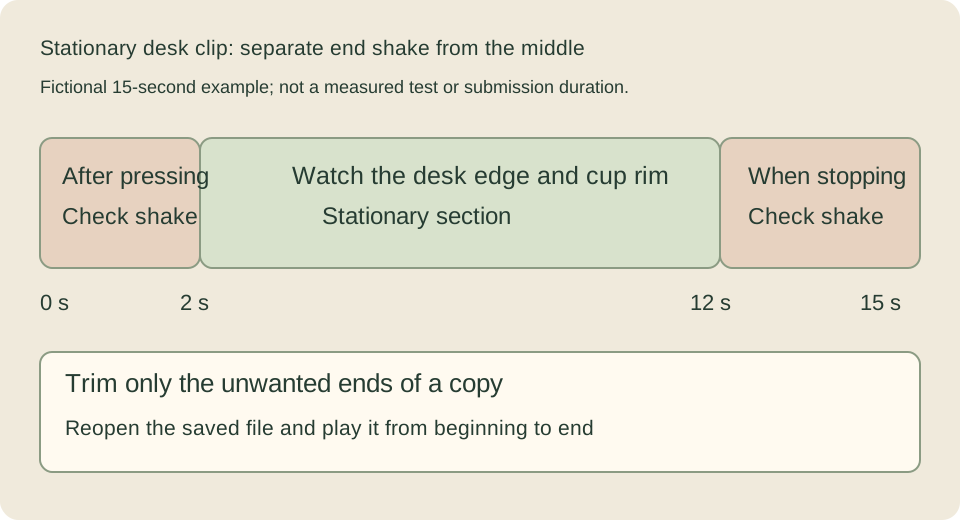
For the next attempt, keep the composition, take your hand away from the button and allow a little longer for the camera to settle. If focus moves to the background, refocus on the cup or find the manual-focus instructions in your camera's manual. AF means autofocus. Even with a still object, investigate what the camera keeps tracking if focus moves back and forth.
3. Improve the support before increasing stabilization
Image stabilization can make movement less noticeable, but it does not fix the camera's position in place like a tripod. Electronic stabilization may crop the edges to adjust the frame, narrowing the recorded view. After changing a setting, record again and check that the cup and notebook are not cut off.
Follow your own camera's tripod/stabilization instructions. For example, the Sony α6700 movie SteadyShot guide says to turn stabilization off when using a tripod. Do not apply that operation to every model; search your own manual for “tripod” and “image stabilization.”
Practise camera movement separately when you need it. A gimbal is support equipment that uses motors and other mechanisms to maintain camera orientation. It does not necessarily remove the rise and fall of walking. Before borrowing or buying one used, check compatibility and attachment for your camera and lens. A lens that extends can change the balance and require adjustment, but that does not mean every zoom needs rebalancing every time.
Before recording a moving shot, decide where to start, where to walk and where to stop. Check for cables and bags that could catch your feet or equipment. Do not keep staring at the screen while walking somewhere unsafe.
4. Trim a copy if only the ends shake
If a steady section remains, you can remove unwanted footage at the start and end. This is called trimming. First copy the video in Finder and give the copy a different name, such as desk-01-trim.mov. Do not experiment by overwriting the camera file.
In QuickTime Player, choose Edit → Trim. Move the handles at either end of the yellow selection to the beginning and end of the part you want to keep. Footage outside the yellow selection will be removed. Choose Trim, check the destination and filename, and save. See Apple's trimming instructions.
Close the trimmed file and reopen it from its saved location. At normal speed, check that the composition has settled at the start, focus stays where you need it and the shot keeps the same intention to the end. Trimming will not repair an entirely shaky clip or an important area that is out of focus. Return to shooting and change the support or focus.
When you need moving subjects or longer recordings
Once the stationary cup works, try only the movement your next shoot needs. With people, film one action at a time—approaching, leaving the frame, returning—and see whether focus comes back after moving to the background. Prepare actions such as looking at a document with the guide to inviting and directing people.
When panning sideways, you may see a vertical post lean. This distortion can result from movement while the sensor reads the frame in sequence; it is called rolling shutter. A stationary desk shot does not test it. Include a doorframe, pan slowly, and also try the speed you actually need. Read Adobe's explanation; if distortion is distracting, slow the pan or use a stationary composition. You do not need to choose equipment solely by an extreme pan you would never use.
To separate two kinds of movement, first pan only the camera from side to side. Then fix the camera and use your hand to move a white sheet of paper across the frame. Do not force a fast pan while standing; work within movements you can repeat safely. The first exercise tests camera movement, the second subject movement. Keep separate files with short notes such as “camera pan” and “paper moved,” so you can revisit which movement produced distracting distortion.
When comparing settings, keep the camera position and lens the same. Note resolution, fps, recording format and stabilization with the clip. Reducing shake with stabilization is separate from changing the time the sensor takes to read a frame. Play the actual working combination from beginning to end, looking for stretched edges, sudden framing shifts or focus that does not return. Record the video with the accessories you need connected, finish it on your computer, then reopen it from its saved location. This checks both recording and whether you can use the result.
For a long recording, separately test a similar duration with the actual card, power, settings and accessories. If a temperature warning appears, stop as the manual directs and check cooling and restart conditions. A successful short recording does not guarantee long recording. Do not extend a 4K/24fps result to 60fps; test the setting you need.
Keep the usable video and a short note, such as “tripod, stabilization as instructed, ends trimmed.” Save the copied original and trimmed version separately in a folder you can find again. Before submitting, separately check the destination's duration, format and audio requirements.