At a glance
- Choose settings your camera and computer can handle through to export.
- Separate recording and playback fps, then check the finished speed and duration.
- Use the sections below when you need 8K cropping room or drop-frame timecode.
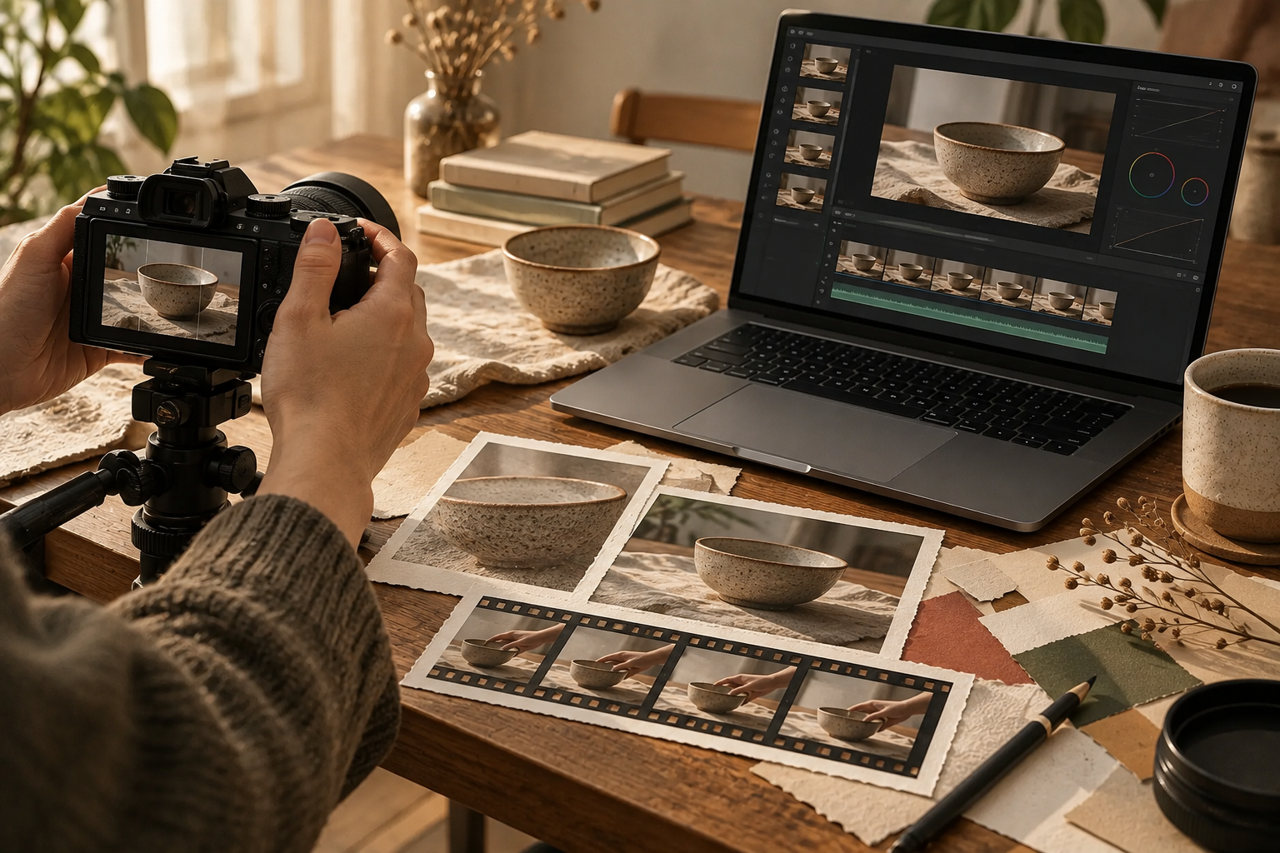
Video settings screens are full of numbers such as 4K, 30p, and 120fps. Start by considering resolution, which determines the detail in the picture, separately from frame rate, which determines the number of frames in 1 second. fps stands for frames per second: the number of frames in 1 second. A frame is 1 individual image, or 1 still picture, in a video.
First, try the whole process from shooting in 4K to submission
Resolution is the number of tiny dots, called pixels, that make up a picture. 4K UHD is 3,840 pixels wide × 2,160 pixels high; Full HD, one of the HD formats, is 1,920 × 1,080 pixels. UHD is the name of this particular 4K standard; the term 4K also covers other dimensions.
If you can start in 4K, you have some room to crop the picture during editing. Higher resolution also increases the burden on storage and editing, though. Record a short clip with your own camera and try everything from importing it to exporting it on your computer. Exporting means turning your edited result into a video file for submission. HD is also an option. Choose settings you can handle all the way through, rather than starting with the highest settings.
Where to use the extra room in 8K

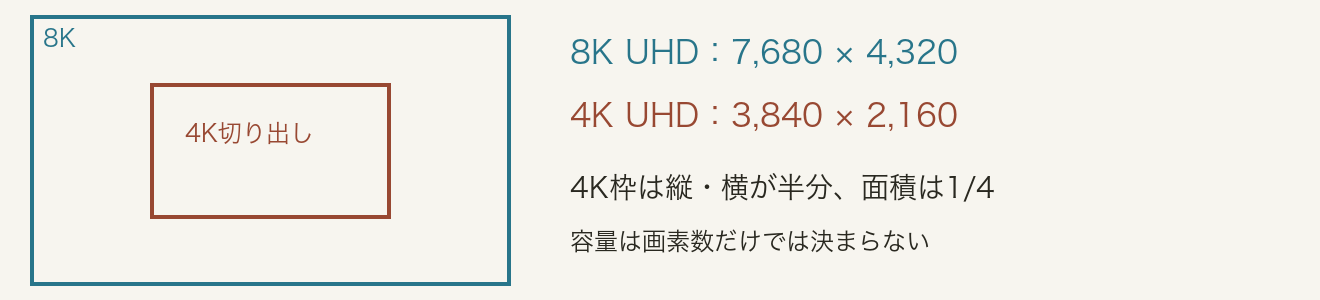
Full view: 8K UHD
7,680 × 4,320 pixels
Crop: 4K UHD
3,840 × 2,160 pixels
8K UHD is 7,680 × 4,320 pixels: 2 times the width and height of 4K UHD, and 4 times the pixel count. Even if you crop an 8K picture to half its width and half its height, you retain a 4K pixel count. This can be useful for changing the composition or leaving room around the edges for image stabilization.
Reading the diagram in English
- Blue outer frame — 8K UHD
- 7,680 × 4,320 pixels.
- Rust inner frame — 4K UHD crop
- 3,840 × 2,160 pixels: half the width and half the height of the 8K frame, so one quarter of its area.
- File size
- Pixel count alone does not determine storage size. The recording format and bitrate also matter.
4K UHD contains about 8.3 million pixels; 8K UHD about 33.2 million. At the same 4K resolution, 30 fps and 60 fps have the same pixel count per frame. If bitrate stays unchanged as frame rate rises, less data may be available per frame. Compare 8K and 4K through heat, battery use, editing, export, storage and upload time.
Separate the recording frame rate from the playback frame rate

Recording for 1 second at 60fps captures 60 frames; at 120fps, it captures 120 frames. If you show all those frames in sequence at 30fps, 60 frames take 2 seconds and 120 frames take 4 seconds. This is the idea behind slow motion: showing the action more slowly than it was recorded.
This table scrolls horizontally. Swipe left or right, or focus the table and use the Left Arrow, Right Arrow, Home, and End keys to move through it.
| Recording fps | Playback fps | Playback duration of 1 second of recording | Speed of motion |
|---|---|---|---|
| 60fps | 60fps | 1 second | Normal speed |
| 60fps | 30fps | 2 seconds | 1/2 normal speed |
| 120fps | 30fps | 4 seconds | 1/4 normal speed |
Simply placing a clip in your editing software does not necessarily produce this slow motion. Specify the frame rate at which the software should interpret the footage, or set its playback speed, and check the final duration. Some cameras do not record audio in modes such as S&Q (Slow & Quick), which create slow-motion video in the camera. Check your camera's manual.
“30p” can mean 29.97fps
The p on the settings screen stands for progressive, a method that handles the whole picture of 1 frame in sequence. It is not a symbol for a fractional frame rate.
Some devices display a name rounded to the nearest whole number. The official guide for my α1, for Ver.2 and later, explains that 30p corresponds to 29.97fps, 60p to 59.94fps, and 120p to 119.88fps. Since 30p does not necessarily mean the same actual rate on every device, I check both the recording settings and the footage values shown by the editing software. The 60, 120, and 30 examples in this article are shorthand for understanding the timing relationship.
Drop-frame is a counting method that reduces drift from clock time
00:00:59;2800:00:59;2900:01:00;02The fractional part of 29.97fps dates back to the transition from black-and-white to color NTSC television, when the original 30fps was slowed by a factor of 1000/1001. The precise rate is approximately 29.97003fps.
Timecode identifies a position in a video using hours, minutes, seconds, and a frame number. If you keep counting 30 frames as 1 second with NDF (non-drop-frame), which skips no numbers, 1 displayed hour takes 3,603.6 seconds of real time: 1 hour and 3.6 seconds.
DF (drop-frame) reduces that drift to bring the count closer to clock time. At 29.97fps, DF skips the 2 numbers 00 and 01 at the beginning of each minute, except every 10th minute. For example, “00:00:59;29” is followed by “00:01:00;02”. The semicolon identifies DF notation. Only the numbers are skipped; no video frames are discarded. This is separate from changing the speed for slow motion or dropping frames during playback.
Finally, distinguish the recording fps from the fps of the submitted file. Adobe Stock's list of standard frame rates goes up to 60fps, and it accepts HD and UHD. Even when you record at a high fps, finish the file to meet the destination's submission requirements.
References
Adobe Stock / Video submission requirements (opens in a new tab)
Adobe Premiere / Interpreting footage frame rates (opens in a new tab)
Sony / α1 recording settings and actual frame rates (opens in a new tab)
Sony / Example of S&Q and audio recording (opens in a new tab)
Apple / Timecode and drop-frame explained (opens in a new tab)
SMPTE / EBU / Time Labelling and Synchronization Annex C (opens in a new tab)
Checklist for this article
- Review section: Start with a short 4K recording and test importing through to export in the delivery format. ↗
- Review section: Distinguish the setting label from the actual frame rate, and decide recording and playback speeds. ↗
Use the checks as a working note while this page is open.