Take one photograph, then look around the frame
With the location and clothing prepared, what should you check on site? Take one picture and examine its edges as well as the subject. A good expression can still share a frame with an unwanted sign or someone reflected in a window. Moving and photographing again can be quicker than removing each distraction at home.
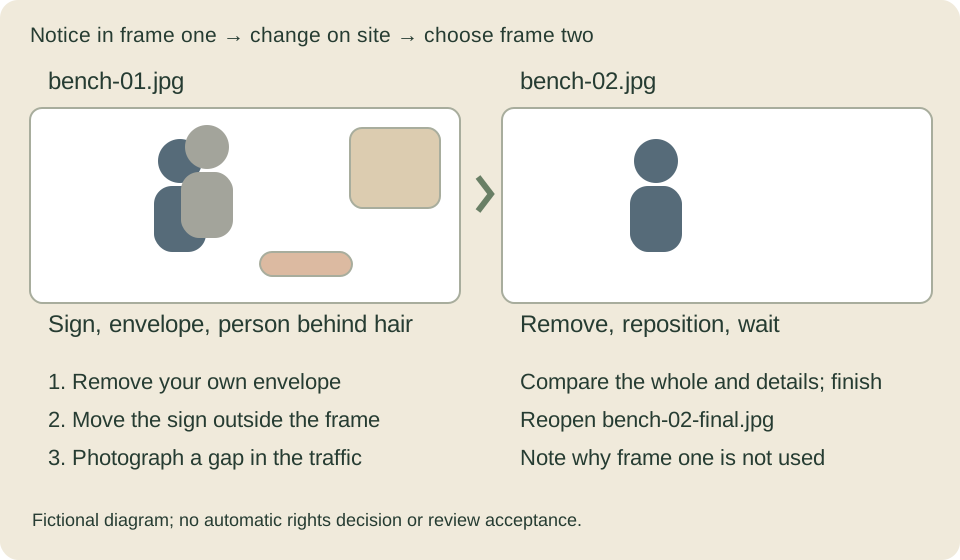
Our fictional example is an adult collaborator looking at a notebook on a bench. The location conditions and the person's consent to photography and commercial stock use have been checked beforehand. This is not a real shoot record or sample photograph. Call the first picture bench-01.jpg and the one after changing position bench-02.jpg; we will choose which to finish.
If the location's conditions are unclear, return to preparing a location shoot. An empty location or permission to enter does not by itself establish commercial-photography permission.
Before asking someone to stand in position, you can photograph the background alone with the intended framing. Checking the edges and window reflections first reduces the need to search for signs while watching the person's expression. Even after checking the empty background, look again for overlaps with hair and outlines once the person is in the picture.
Check the corners, behind the subject, then reflections
Play back the first photograph on the camera and look at the whole image. Starting at the upper left, follow the four corners clockwise, then look behind the subject and finally at windows and mirrors. If your camera supports magnified playback, enlarge signs or documents that are hard to read. Find the playback controls in your own camera's manual; buttons vary.
In bench-01.jpg, a shop sign sits at the right edge, an envelope showing a name lies beside the notebook, and a passerby is directly behind the subject's hair. These are easy to miss when concentrating on expression. Remove the envelope from the picture because it belongs to your group; change position to exclude the sign. Ask before moving anything belonging to the location.
A small logo or blurred artwork does not automatically make a picture suitable for submission. Inspect the final image for readable text, recognizable shapes and private information. Ordinary Adobe Stock photographs have technical and legal requirements, including logo restrictions.
Change your position and timing before moving other people
During a family shoot, a passerby once stopped within my frame and I found myself wishing they would move on quickly. But that person had not come to interfere with the shoot. They were simply visiting and spending time there normally. I cannot assume they should accommodate my photography.
Asking every passerby to move is disruptive for everyone. First keep the passage clear and move bags and waiting areas out of the way. Watch for a break in the flow of people. If the opportunity will be brief, prepare the composition and exposure first.
In this example, wait for the passerby to leave and move a little sideways within a safe area. Find a position that takes the sign out of the frame and separates the subject's hair from background clutter. Moving closer may help, but check that you retain the notebook scene and space for text. Look at your footing and the passage before stepping back.
On an early-morning visit to Higashi Chaya in Kanazawa, Japan, a refuse-collection vehicle was parked for a while and I changed my composition. Even when there are few tourists, the neighborhood's work and daily life continue.
Early mornings or weekdays do not guarantee the same conditions every time. If people keep entering, the shoot interferes with business or cleaning, or you cannot work safely in the permitted area, choose another angle or location. Waiting for a moment is different from occupying a place indefinitely.
Consider more than faces when people remain in the background
I do not remove or blur everybody simply because there are people in the background. I sometimes leave a background person when their face cannot be recognized.
That describes the author's usual handling; read the destination's rules separately. Adobe Stock explains that a model release can be needed even when a face is hidden if features or surrounding information identify the person. A model release records the photographed person's consent to use as stock material. See Adobe's model-release requirements.
If someone remains in the second picture, enlarge it and examine the face, distinctive clothing and context. Do not assume a release is unnecessary merely because you see a back view. When another shot is possible, waiting for an empty background can be simpler. Even behind the main subject, a remaining visible part may identify someone.
When an object or person overlaps hair or clothing, later removal may require repairing the subject's outline. If you may need to exclude something, seek a position that separates it from that outline. If assessment or repair remains difficult, leave the picture out of the submission selection and note why.
For video, check what happens during movement too
If you also record a clip at the bench, do not stop at its first still frame. Play it from beginning to end at normal speed. A sign may appear when the subject lifts their head, clothing may reveal a logo in the wind, or a passerby may enter halfway through. Pause a concerning moment and review from a little earlier.
For video I put even more emphasis on solving problems during shooting. A shoe logo may appear only when someone walks, lettering may become visible through gaps in clothing, or a sign may enter when the camera moves. A clean stationary view does not necessarily stay clean throughout the clip.
I do not mean video cannot be repaired. My aim is to get closer to something I can submit without much later work. Check clothing and backgrounds in motion; wait, turn, reframe or record again when a problem may appear. Choose what can be solved on site.
If you notice it during the shoot, retake within safe conditions and the location's rules. If you cannot, consider whether a usable section can be extracted under that destination's duration and editing conditions. A repair possible in a still photograph may take quite different work in video.
Before leaving, check bags and belongings and return anything you moved to its place.
Compare the two pictures and choose one to finish
At home, keep the originals and open both in your usual photo software. First compare their use and composition at whole-image size. Then inspect focus, hair and clothing edges, the former sign area and the place the envelope occupied at 100%: one image pixel per display pixel. This helps reveal small faults; return to the whole picture afterward.
If the second picture retains the notebook action and text space, is focused and excludes unwanted text and people, finish that one. You do not have to rescue the first. If only the first has a particularly good expression, weigh the repair effort and whether the result would still look natural.
My finishing mainly adjusts exposure, color and contrast. If a logo remains, I sometimes try AI-assisted removal. If removal fails, I crop; if that still leaves an awkward composition, I do not use the picture.
If a logo overlaps hair and is difficult to fix, I avoid spending excessive time on it. I would rather ask for a removable item to be removed while shooting, or leave that frame out. I want more usable pictures, not unlimited time spent saving one.
Adobe Stock's labeling guidance distinguishes removing an unwanted object from creating or substantially changing a main subject. Check the edit you used against the official generative-AI guidance. This discussion concerns ordinary stock submissions. An individual Mission may prohibit editing; its brief takes priority.
Save the finished image and the reasons separately
Save the second picture separately as bench-02-final.jpg and reopen it. Check the actual finished file, rather than the original, for unwanted text, people, repair traces and focus. A short note can say “bench-02-final.jpg: finished. bench-01.jpg: not used this time because the sign and passerby remain.” Use reasons that fit your own photographs.
If permission is unconfirmed, keep saving the finished image separate from deciding to submit it. Note a next action such as asking the manager about commercial photography, and keep the picture out of the submission set. Store replies and releases in your own managed location, linked to the shoot date and original filename. Names and contact details do not need to be copied into public notes.
When I emphasize quantity, I do not mean submitting everything with known problems. I mean excluding clear failures and unusable frames, then finishing and increasing useful material without excessive polishing.
After shooting and finishing, continue with submission preparation. The goal is to finish a useful picture and move to the next scene, rather than spend all your time fixing one background.