You have finished a photograph, and you want to find it again when you need it. Start with one shoot: keep the original, the finished picture, and a short note together. You do not need a large server or a complicated numbering system to begin.
1. Give one shoot a place you can find again
In this fictional example, you photographed a cup and notebook on a desk. You kept IMG_0101.JPG and made a finished version called desk-cup-stock.jpg. You now have both files. If you also recorded video, the same approach can separate the original desk-01.mov from the trimmed desk-01-trim.mov.
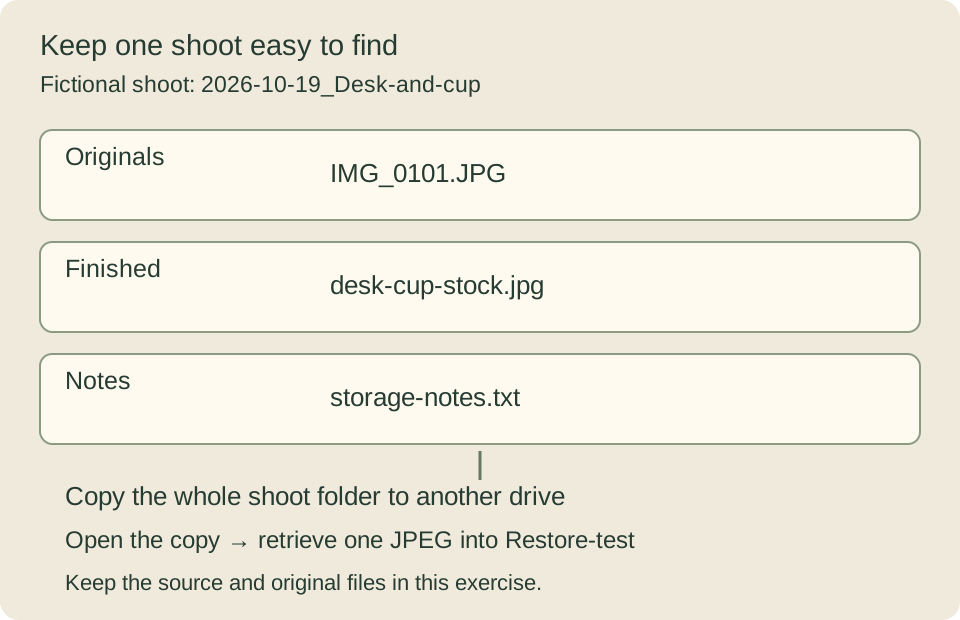
On a Mac, open your usual photo storage location in Finder. Choose File → New Folder and name the folder 2026-10-19_Desk-and-cup. The date is the fictional shoot date. Inside it, create three folders: Originals, Finished, and Notes. Use your own shoot date and a subject name you will recognize later.
Select the original photograph on the card or in its existing folder, copy it, then paste it into Originals. On a Mac, use Command+C, open the destination, then use Command+V. Begin with a copy rather than cutting or moving the file. Copy the finished JPEG into Finished. If you have not made a finished version yet, first follow the steps for finishing one photograph.
You do not have to rename every file. Keeping the camera filename and giving the finished version a useful name can be enough to show where you can return. If the destination already has a file with the same name, open both and compare their dates and pictures before choosing Replace. A camera can reuse a filename on a different shoot.
2. Leave a short note for your future self
Use your usual notes or text application to write four lines: the original, the finished version, what you changed, and whether you have submitted it. Save the note in this shoot’s Notes folder. In TextEdit on a Mac, start a new document, choose Format → Make Plain Text if needed, and save it as storage-notes.txt. If it is already plain text, there is nothing to switch. Choose this shoot’s Notes folder when saving.
Original: IMG_0101.JPG
Finished: desk-cup-stock.jpg
Change: made it a little brighter
Submitted: not yet
This is a personal reminder, not a table to import into a stock site. If you revise the brightness or color, keep the new version under a different name, such as desk-cup-stock-v2.jpg, and add what changed: “The white cup was too bright, so I adjusted it.” You can then compare the versions.
If you later need to sort several sessions from one day, two cameras with different clock settings, or photographs and video that appear in the wrong order, use the shoot-date and file-order guide. You do not need to work out an elaborate numbering scheme before saving this one picture.
3. Copy the shoot to another location, then open that copy
A backup is a copy you can use to recover files you lose. Two folders on the same drive can both disappear if that drive fails. Copy this shoot folder to another available storage device, such as a separate external drive. If you do not have one yet, keep the files you have and leave the second copy marked as not done.
- Open the destination drive in Finder and find
2026-10-19_Desk-and-cup. - From its
Finishedfolder, opendesk-cup-stock.jpg. Check that it is the cup-and-notebook picture, with the intended orientation and finish. - Open the copied
OriginalsandNotesfolders too. Check that the original picture and four-line note open. For video, play the copied clip, including its beginning and end. - Copy the finished JPEG from the backup to a new folder on your computer called
Restore-test, then open it there. This gives you a small practice run at retrieving a picture when its usual location is unavailable.
The useful check is opening the files at the destination, rather than only seeing a “copy finished” message. If a file will not open, keep the source and check for an interrupted copy or a disconnected drive. For a large transfer, another method compares checksums: values calculated from file contents. Opening a few pictures in this exercise does not prove that every file in a large collection is identical.
Automatic sync can carry a deletion to another location too. Seeing a file in the synced location is different from knowing you can recover it after an accidental deletion. Check the service’s version history and recovery conditions. A stock site is also not a storage service from which you can assume you will always retrieve the same submitted file.
4. Keep the photograph and its editing information distinct
A photo application’s catalog is a record that can remember file locations and adjustments; it is not necessarily the photographs themselves. For example, copying a Lightroom Classic catalog does not also copy originals stored elsewhere or JPEGs you exported. Adobe’s catalog-backup instructions explain that the photographs need their own backup.
If you already manage pictures in such an application, you can try this folder exercise with exported finished files first. You do not have to reorganize all the originals. Moving or renaming an original outside the application may make it lose track of the file. If it reports a missing picture, find where the original is now and use that application’s reconnection steps before repeatedly importing it again.
If you want to adjust the work again, keep its catalog or editing project as well as the source photographs. A video project may also need the source clips it refers to in order to recreate the same result. Before changing applications for your whole collection, use one shoot to try opening the files, carrying over the adjustments, and exporting a finished version.
If you work between two management applications, choose one place to decide filenames and ratings. Changing names independently in both can leave you unsure which version is current. Use a copy of one shoot to check which application makes a change and which receives it, and whether an old name or rating unexpectedly returns. Keeping a finished JPEG and a plain-text note also gives you a record of what you made if you change software later.
When storage gets tight, first check what will remain
On 29 September 2026, I said that I had a server of about 50 TB at home, and it was filling up too. That describes my situation at that date, not storage a beginner needs. Match your storage to what you have, starting with a small collection you can find and recover.
I would like to keep source data where possible, but I sometimes clear out original photographs or video when capacity becomes a problem. I do not keep every RAW file forever. I prioritize finished work while deciding which source files and editing information to retain.
In this exercise, do not delete the original. If space becomes a problem, first open the finished files, editing information, and separate copy to see what you have. Losing the source can reduce your options for a different crop or color adjustment later. Similar filenames alone do not prove that files are duplicates. Do not delete the source before checking the copy. If there is too little space to work, you can pause new copying until another storage location is available.
Try using a saved photograph again
I see value in keeping portraits and photographs of streets as they used to be, because they can later be used in books and other work. I have sold a photo book using older street photographs. Keeping the image and information about when it was taken matters when the scene cannot be photographed again.
For a different use, find a saved file with the size and editing possibilities you need. Enlarging a small social-media copy does not restore detail it has lost. Check the shoot date rather than describing an old street scene as its current appearance. For photographs showing people or works, revisit the consent and permission for the new use. Keep documents containing personal information out of public or delivery photo folders.
Close the shoot folder in Finder. Now find it again from the place where you saved it and open the finished JPEG. If you can also find the original and note, you have a place to start when you want to make a change. To continue toward submission, go to giving the picture a title and keywords.